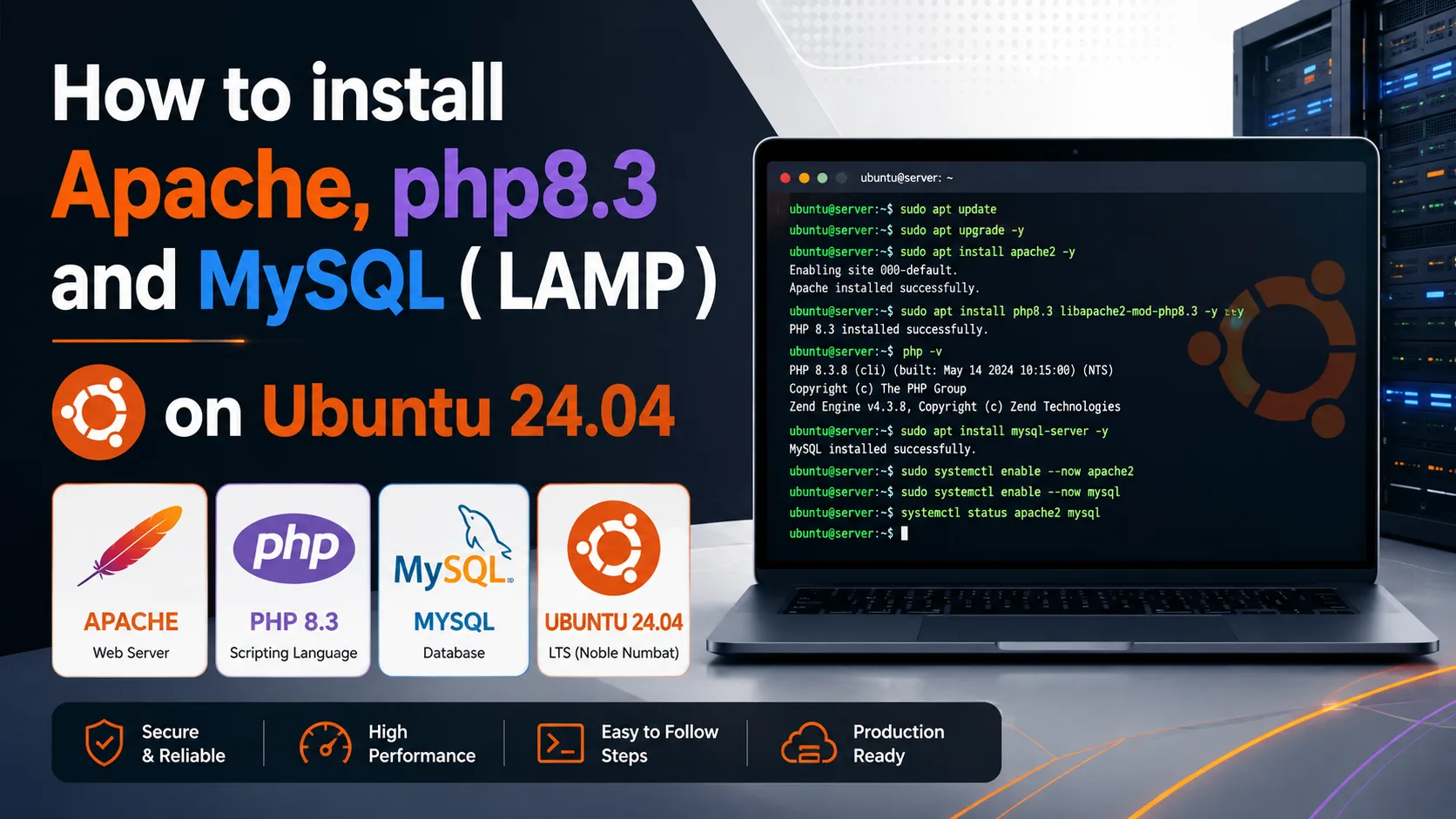
A LAMP stack is a collection of open-source software used to host dynamic websites and web applications. LAMP stands for Linux, Apache, MariaDB/MySQL and PHP.
In this guide, we will install and configure a complete LAMP stack on Ubuntu 24.04 using Apache, MariaDB and PHP 8.3.
Update Package Index
Before installing any new packages, update the local package index and upgrade the currently installed packages:
Install and Configure Apache
Install Apache: Install the Apache web server and the required utilities:
Verify Apache is running:
If Apache is not running, start it with:
Enable Apache to start automatically when the server boots:
Check the installed Apache version:
Configure UFW Firewall
If UFW is enabled on your server, allow incoming HTTP and HTTPS connections to Apache:
Alternatively, HTTP and HTTPS can be allowed separately:
Check the current firewall configuration:
Apache should now be accessible by entering the server IP address in a web browser:
Install MariaDB Server
Ubuntu 24.04 includes MariaDB in its official repositories. Install the MariaDB server and client packages:
Verify MariaDB is running:
If MariaDB is not running, start it:
Enable MariaDB to start automatically during system boot:
Check the installed MariaDB version:
Secure MariaDB Installation
MariaDB includes a security configuration utility that can remove insecure default settings and restrict access to the database server.
During the configuration process, you can remove anonymous users, disable remote root login, remove the test database and reload the privilege tables.
Login to MariaDB:
To exit from the MariaDB console:
Install PHP 8.3 and Core Extensions
PHP 8.3 is the default PHP version included with Ubuntu 24.04. Install PHP together with the Apache PHP module and commonly used PHP extensions:
Check the installed PHP version:
Configure Apache to Process PHP
Enable the PHP 8.3 and Apache rewrite modules:
Restart Apache to apply the changes:
Test PHP Processing
To confirm that Apache can correctly process PHP files, create a temporary PHP information page:
Add the following PHP code:
Save the file and open the following URL in your web browser:
If PHP is configured correctly, the PHP information page will display the current PHP configuration and loaded extensions.
Important: Remove the test file immediately after verifying PHP because it exposes detailed information about the server configuration:
Run PHP-FPM with Apache (Optional)
PHP-FPM (FastCGI Process Manager) is an alternative way of processing PHP requests and is often preferred for higher-load websites and more flexible PHP process management.
This section is optional. If you want to continue using the standard Apache PHP module installed above, you can skip it.
Install PHP 8.3 FPM:
Disable the Apache PHP module and the prefork MPM:
Enable the event MPM and the modules required for PHP-FPM:
Enable the PHP 8.3 FPM Apache configuration:
Enable and start the PHP-FPM service:
Restart Apache:
Verify that PHP-FPM is running:
Verify Installed Services
Finally, verify that Apache and MariaDB are running correctly:
If PHP-FPM is being used, check it as well:
Conclusion
You have successfully installed a LAMP stack on Ubuntu 24.04 with Apache, MariaDB and PHP 8.3.
Your server is now ready to host PHP-based websites and applications such as WordPress, WooCommerce and other PHP web applications.