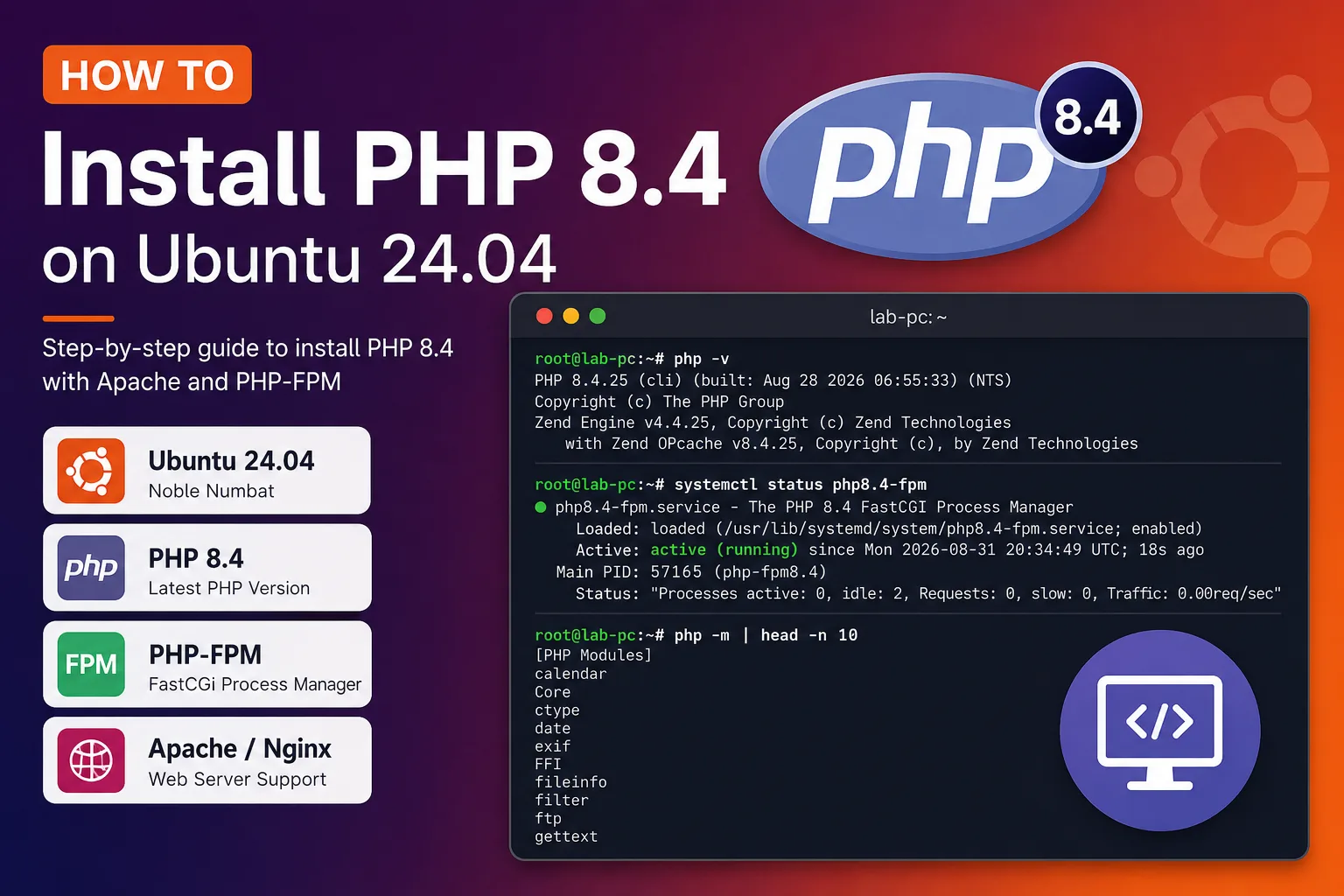
In this guide I will show how to install php 8.4 on Ubuntu 24.04
PHP 8.4 is not the default PHP version provided by Ubuntu 24.04. This guide shows how to install PHP 8.4 using the Ondřej Surý PHP repository, verify the installation, install PHP-FPM and configure Apache to use it.
Add the PHP Repository
Add the Ondřej Surý PHP repository:
root@lab-pc:~# sudo add-apt-repository ppa:ondrej/php
PPA publishes dbgsym, you may need to include 'main/debug' component
Repository: 'Types: deb
URIs: https://ppa.launchpadcontent.net/ondrej/php/ubuntu/
Suites: noble
Components: main
'
Adding repository.
Press [ENTER] to continue or Ctrl-c to cancel.
Hit:1 http://us.archive.ubuntu.com/ubuntu noble InRelease
Hit:2 http://security.ubuntu.com/ubuntu noble-security InRelease
Hit:3 http://us.archive.ubuntu.com/ubuntu noble-updates InRelease
Hit:4 http://us.archive.ubuntu.com/ubuntu noble-backports InRelease
Get:5 https://ppa.launchpadcontent.net/ondrej/php/ubuntu noble InRelease [24.3 kB]
Get:6 https://ppa.launchpadcontent.net/ondrej/php/ubuntu noble/main amd64 Packages [189 kB]
Get:7 https://ppa.launchpadcontent.net/ondrej/php/ubuntu noble/main Translation-en [43.8 kB]
Fetched 257 kB in 1s (190 kB/s)
Reading package lists... Done
Check the Available PHP Version
Check which PHP version will be installed:
root@lab-pc:~# sudo apt policy php
php:
Installed: (none)
Candidate: 2:8.4+101~+ubuntu24.04.1+deb.sury.org+1
Version table:
2:8.4+101~+ubuntu24.04.1+deb.sury.org+1 500
500 https://ppa.launchpadcontent.net/ondrej/php/ubuntu noble/main amd64 Packages
2:8.3+93ubuntu2 500
500 http://us.archive.ubuntu.com/ubuntu noble/main amd64 Packages
Install PHP 8.4
Install PHP 8.4:
sudo apt install php8.4 -y
The package installs the PHP 8.4 CLI and when Apache is present or installed as a dependency, the Apache PHP module.
Verify PHP 8.4
Check the active PHP CLI version:
root@lab-pc:~# php -v
PHP 8.4.25 (cli) (built: Aug 28 2026 06:55:33) (NTS)
Copyright (c) The PHP Group
Built by Ubuntu
Zend Engine v4.4.25, Copyright (c) Zend Technologies
with Zend OPcache v8.4.25, Copyright (c), by Zend Technologies
Check the installed PHP configuration versions:
root@lab-pc:~# ls /etc/php
8.4
Check Installed PHP Modules
List the PHP modules currently available:
root@lab-pc:~# php -m
[PHP Modules]
calendar
Core
ctype
date
exif
FFI
fileinfo
filter
ftp
gettext
hash
iconv
json
libxml
openssl
pcntl
pcre
PDO
Phar
posix
random
readline
Reflection
session
shmop
sockets
sodium
SPL
standard
sysvmsg
sysvsem
sysvshm
tokenizer
Zend OPcache
zlib
[Zend Modules]
Zend OPcache
Install PHP 8.4 FPM
For Apache or Nginx deployments using FastCGI, install PHP 8.4 FPM:
root@lab-pc:~# sudo apt install php8.4-fpm -y
The following NEW packages will be installed:
php8.4-fpm
0 upgraded, 1 newly installed, 0 to remove and 49 not upgraded.
Setting up php8.4-fpm (8.4.25-1+ubuntu24.04.1+deb.sury.org+1) ...
Creating config file /etc/php/8.4/fpm/php.ini with new version
NOTICE: Not enabling PHP 8.4 FPM by default.
NOTICE: To enable PHP 8.4 FPM in Apache2 do:
NOTICE: a2enmod proxy_fcgi setenvif
NOTICE: a2enconf php8.4-fpm
NOTICE: You are seeing this message because you have apache2 package installed.
Created symlink /etc/systemd/system/multi-user.target.wants/php8.4-fpm.service → /usr/lib/systemd/system/php8.4-fpm.service.
Enable PHP 8.4 FPM
Start PHP-FPM and enable it automatically during system boot:
root@lab-pc:~# sudo systemctl start php8.4-fpm
root@lab-pc:~# sudo systemctl enable php8.4-fpm
Synchronizing state of php8.4-fpm.service with SysV service script with /usr/lib/systemd/systemd-sysv-install.
Executing: /usr/lib/systemd/systemd-sysv-install enable php8.4-fpm
Verify that PHP-FPM is running:
root@lab-pc:~# sudo systemctl status php8.4-fpm
● php8.4-fpm.service - The PHP 8.4 FastCGI Process Manager
Loaded: loaded (/usr/lib/systemd/system/php8.4-fpm.service; enabled; preset: enabled)
Active: active (running) since Mon 2026-08-31 20:34:49 UTC; 18s ago
Docs: man:php-fpm8.4(8)
Main PID: 57165 (php-fpm8.4)
Status: "Processes active: 0, idle: 2, Requests: 0, slow: 0, Traffic: 0.00req/sec"
Tasks: 3 (limit: 9431)
Memory: 8.1M (peak: 9.3M)
CPU: 66ms
CGroup: /system.slice/php8.4-fpm.service
├─57165 "php-fpm: master process (/etc/php/8.4/fpm/php-fpm.conf)"
├─57168 "php-fpm: pool www"
└─57169 "php-fpm: pool www"
Aug 31 20:34:49 lab-pc systemd[1]: Starting php8.4-fpm.service - The PHP 8.4 FastCGI Process Manager...
Aug 31 20:34:49 lab-pc systemd[1]: Started php8.4-fpm.service - The PHP 8.4 FastCGI Process Manager.
PHP 8.4 FPM Configuration
The main PHP-FPM configuration file is:
The default PHP-FPM pool configuration is located at:
/etc/php/8.4/fpm/pool.d/www.conf
After changing the PHP-FPM configuration, restart the service:
sudo systemctl restart php8.4-fpm
If you want Apache to process PHP through PHP-FPM instead of mod_php, disable the Apache PHP module and switch from prefork to the event MPM:
sudo a2dismod php8.4
sudo a2dismod mpm_prefork
sudo a2enmod mpm_event proxy_fcgi setenvif
sudo a2enconf php8.4-fpm
sudo systemctl restart apache2
The Apache FPM modules can be verified during configuration:
root@lab-pc:~# sudo a2enmod proxy_fcgi setenvif
Considering dependency proxy for proxy_fcgi:
Enabling module proxy.
Enabling module proxy_fcgi.
Module setenvif already enabled
To activate the new configuration, you need to run:
systemctl restart apache2
root@lab-pc:~# sudo a2enconf php8.4-fpm
Enabling conf php8.4-fpm.
To activate the new configuration, you need to run:
systemctl reload apache2
Test PHP with Apache
Create a simple PHP information page:
sudo nano /var/www/html/info.php
Add:
Open the following URL in a browser:
http://SERVER_IP/info.php

The PHP information page should show PHP 8.4. Remove the file after testing because phpinfo() exposes detailed server configuration information:
sudo rm /var/www/html/info.php
Quick Troubleshooting
If PHP-FPM is not working, first verify the service:
systemctl status php8.4-fpm
Check that the PHP-FPM socket exists:
ls -l /run/php/php8.4-fpm.sock
Check the Apache configuration for errors:
Restart both services after configuration changes:
systemctl restart php8.4-fpm
systemctl restart apache2